Adding SMTP/IMAP Service
Utilizing SMTP (Simple Mail Transfer Protocol) allows you to send emails programmatically, while IMAP (Internet Message Access Protocol) enables you to retrieve incoming emails. For adding SMTP/IMAP configurations, follow the below steps:
1. Access the App Panel
Navigate to your Zango application's landing page and access the App Panel.
2. Navigate to the Communication package
In the App Panel, locate and click on the "Packages" menu and locate the communication package.
3. Access Communication Detail page
Click on the “View Details” link to access the details page of the communication package.
4. Open Email Tab
Click on the "Email" tab located under the Communications section.
5. Add New Configuration
Within the Email tab, locate and click on the "New SMTP/IMAP" button.
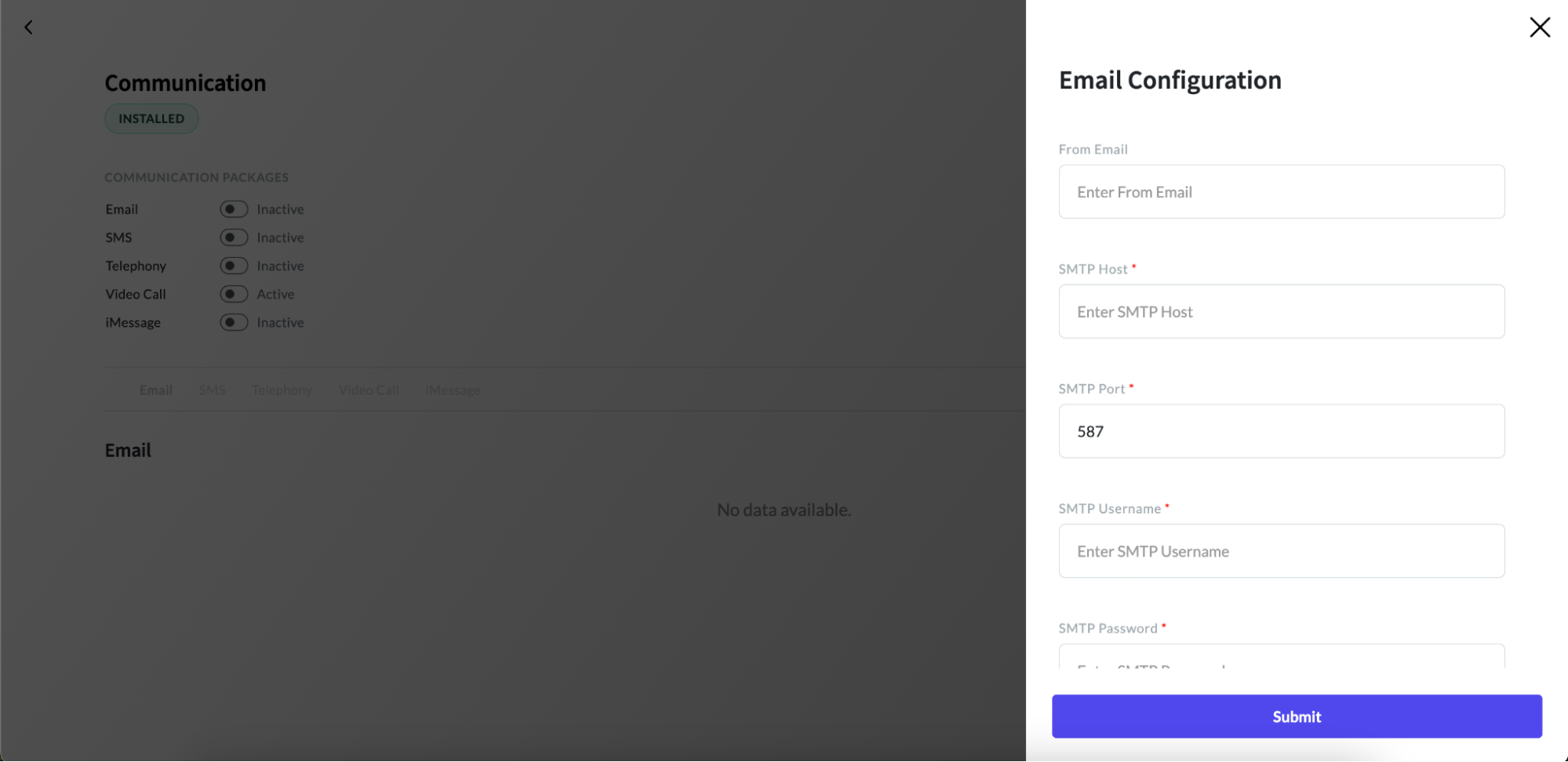
6. Fill in the Configuration Form
A form will appear for setting up a new configuration. Fill in the required fields, including:
- From Email: The email address from which emails will be sent.
- SMTP Host: The hostname or IP address of the SMTP server for sending emails.
- SMTP Port: The port number used by the SMTP server (e.g., 25, 587, 465).
- SMTP Username: The username required for authentication with the SMTP server.
- SMTP Password: The password associated with the SMTP username for authentication.
- SMTP Encryption: The encryption method used for securing SMTP connections, choose between SSL or TLS.
- IMAP Host: The hostname or IP address of the IMAP server for receiving emails.
- IMAP Port: The port number used by the IMAP server (e.g., 143, 993).
- IMAP Username: The username required for authentication with the IMAP server.
- IMAP Password: The password associated with the IMAP username for authentication.
- IMAP Encryption: The encryption method used for securing IMAP connections, choose between SSL or TLS.