Viewing Users in the Application
Viewing and understanding the user landscape is a key aspect of effective user management. The User Management module in App Panel provides a user-friendly interface to explore and comprehend the users within your application. Here's a guide on how to view users:
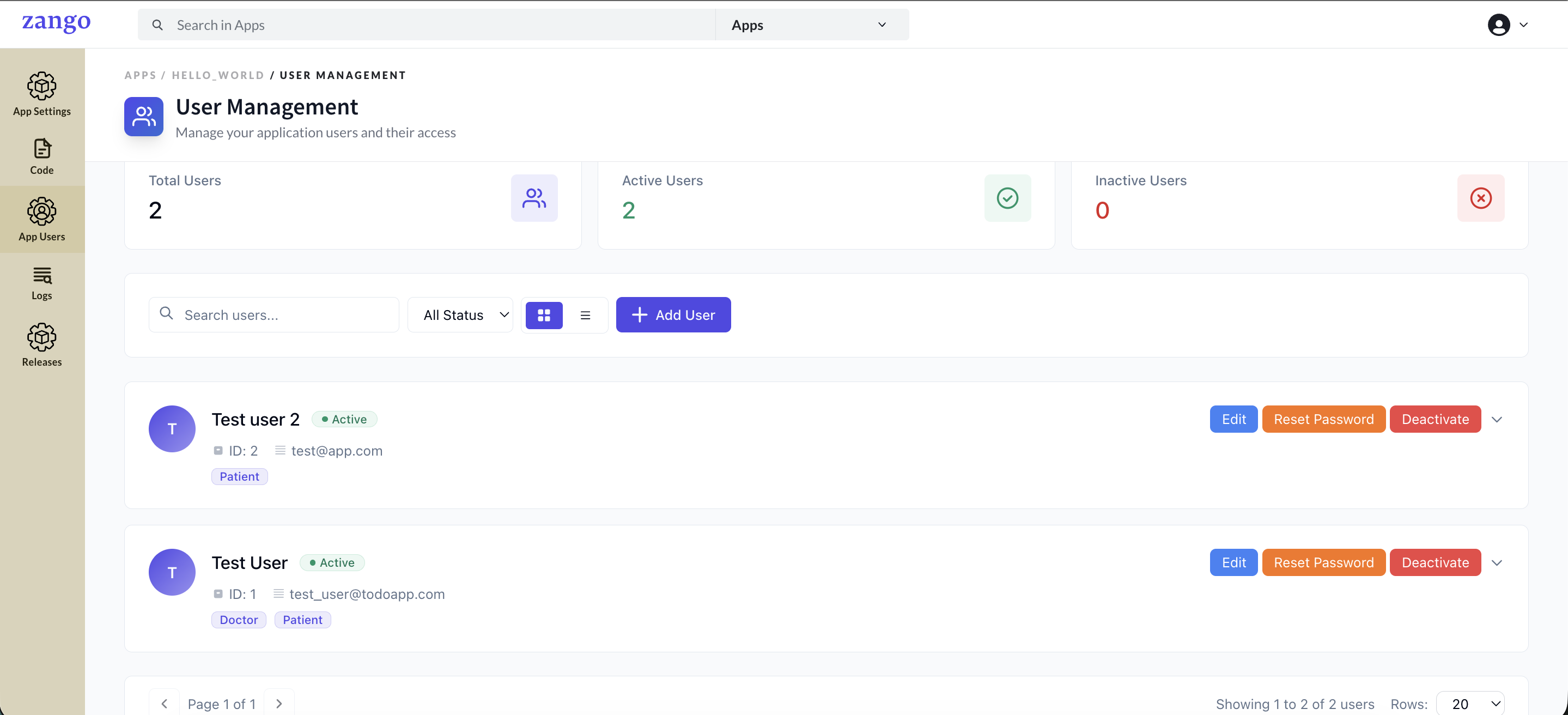
Accessing the User Management Page
Start by clicking on the "User Management" menu in App Panel. This action will redirect you to the User Management page.
Exploring User Details
User Table View
Upon reaching the User Management page, you'll encounter a table view that presents a comprehensive list of all users registered in your application.
User Data Columns
The table view is structured with columns that provide essential information about each user. Common columns may include:
- ID: A unique identifier for each user.
- Name: The user's full name.
- Mobile Number: Contact number associated with the user.
- Email: User's email address.
- User Roles: The user roles assigned to the user.
- Policies: Policies associated with the user, determining their access and permissions.
- Last Login: The most recent timestamp of the user's login activity.
- ...and more.
Sorting and Filtering
The User Management page often offers sorting and filtering options to help you quickly locate specific users based on various criteria.
Detailed User View
By clicking on a specific user's entry, you can access a detailed view that provides additional insights into the user's profile, roles, policies, login history, and more.
Comprehensive User Insights
The User Management page in App Panel empowers administrators and developers to gain a comprehensive understanding of the users utilizing the application. Through this interface, you can efficiently explore user details, roles, policies, and login history. This knowledge facilitates informed decision-making and streamlined user administration within your business applications.