Syncing Tools
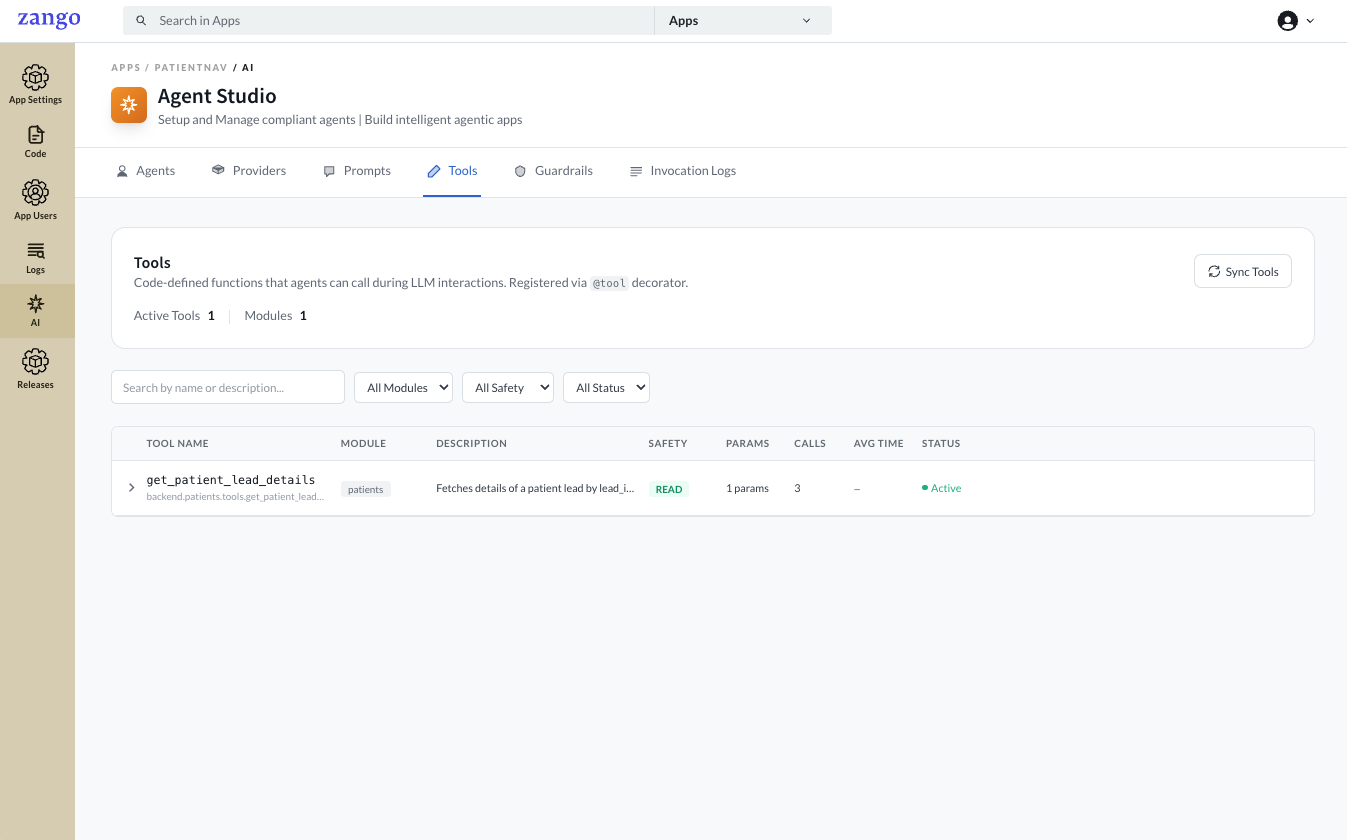
After defining tools in your tools.py files, you must sync them from the App Panel so Zango discovers them and makes them available to agents. Syncing also picks up any changes to tool names, descriptions, or parameters.
When to Sync
Sync tools whenever you:
- Add a new
@tooldecorated function - Change a tool's
name,description, orsection - Add, remove, or change a
ToolParamdescription - Move a tool to a different module
How to Sync
- Go to App Panel → your app → AI → Tools.
- Click Sync Tools.
Zango scans all tools.py files across your app's modules, registers new tools, and updates existing ones.
Viewing Synced Tools
After syncing, each discovered tool appears in the list with:
| Column | Description |
|---|---|
| Name | The name from the @tool decorator |
| Section | The section grouping |
| Safety | READ_ONLY, WRITE, or EXTERNAL |
| Description | What the tool does (shown to the LLM) |
| Module | The Python module path where the tool is defined |
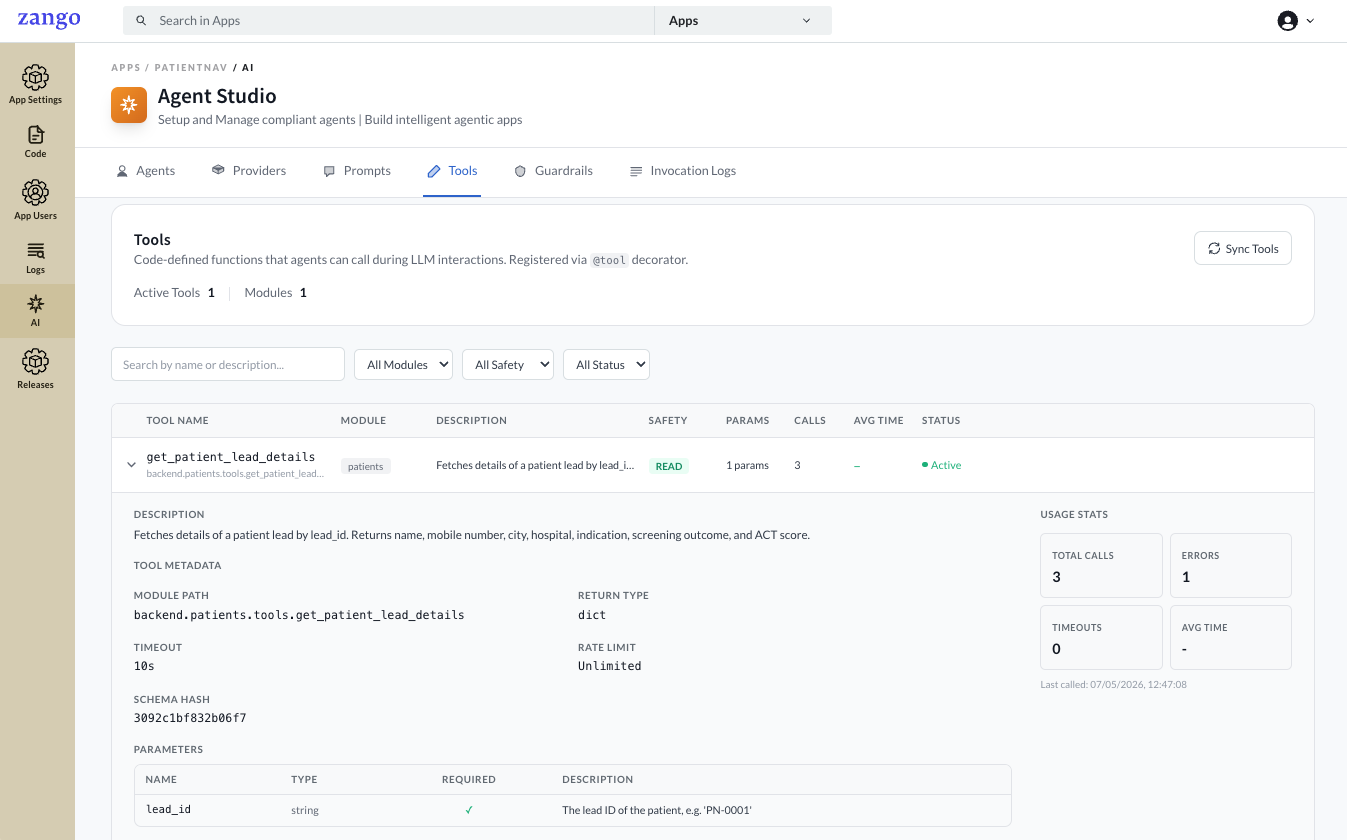
Clicking a tool opens its detail view.
Tool Metadata
| Field | Description |
|---|---|
| Module Path | Full Python import path to the tool function |
| Return Type | The Python type returned by the tool (e.g. dict, str) |
| Timeout | Maximum execution time before the call is aborted |
| Rate Limit | Maximum calls allowed per minute for this tool |
| Schema Hash | Fingerprint of the tool's parameter schema — changes when parameters are added, removed, or renamed |
Parameters
| Column | Description |
|---|---|
| Name | Parameter name as declared in ToolParam |
| Type | Expected data type (e.g. string, integer) |
| Required | Whether the agent must supply this parameter |
| Description | Text shown to the LLM to describe what the parameter expects |
Status & Usage Stats
| Field | Description |
|---|---|
| Status | Whether the tool is active and available to agents |
| Safety | READ_ONLY — reads only; WRITE — modifies database records; EXTERNAL — calls outside services |
| Params | Number of declared parameters |
| Calls | Total number of times this tool has been invoked |
| Errors | Number of invocations that returned an error |
| Timeouts | Number of invocations that exceeded the timeout |
| Avg Time | Average execution time across all calls |
Assigning Tools to Agents
Synced tools become available in the Tools field when editing an agent. A tool must be synced before it can be assigned to any agent. Open the agent, select the tools, and save.
Tools are tenant-scoped. Syncing in one tenant's App Panel does not affect other tenants.
Next Steps
With tools attached to your agent, run the agent from your app code.